
Instead of reconnecting cables whenever you raise a standing desk, connect the desktop equipment through a supported cable route with enough movement allowance to reach the office power and data points at every desk height. This guide covers the connection plan, installation checks and movement tests; use Giant Leap’s standing desk guide alongside it when planning a small office.
TL;DR
- For standing desks office power data points, secure desktop cables and leave controlled slack between moving and fixed connections.
- Giant Leap’s standing desk guide is best for small-office planning; use your desk manual for electrical requirements.
- Test the complete height range before reconnecting equipment, then repeat with every device connected.
- Use a qualified electrical professional for new sockets or changes to fixed wiring.
Why this matters
A standing desk changes the distance between your equipment and the building’s connection points. A cable that reaches comfortably while you sit can pull against a socket, dock or network port when you stand.
Support the cables independently of their connectors, and test the entire movement range. Loose cable length alone does not solve the problem: an unsupported loop can catch on a chair, desk mechanism or neighbouring workstation.
For a 2026 office setup, record the actual desk, equipment and connection locations rather than copying another workstation’s arrangement. The relevant limits come from the desk and equipment manufacturers, not a generic cable-length recommendation.
Before you start
- Have the equipment instructions and access ready. Locate the desk manual, power supply, equipment power ratings, network outlets and any docking-station instructions. Arrange IT support if the office network requires port activation or device authorisation.
- Gather suitable cable-management materials. Use compatible trays, mounts, reusable ties and cables rated for their intended use. Do not drill into the desktop until you have checked approved fixing locations, desktop thickness and the desk’s cable routes.
- Check the moving-to-fixed connection first. The non-obvious trap is a floor box or wall outlet that becomes inaccessible, obstructed or strained at a different desk height. Confirm that the complete route works before fastening anything permanently.
Moving a plug-in desk does not authorise changes to the building’s wiring. Ask a qualified electrical professional to assess new outlets, damaged sockets, exposed wiring or uncertain circuit capacity.
Connection plan
Map the fixed connections
- Identify the power socket and data outlet assigned to the workstation. Confirm which network port serves the desk with your IT team; a socket’s presence does not establish that it is active.
- Locate the desk’s power input and identify which equipment moves with the desktop. Include monitors, docks, chargers and accessories, not just the computer.
- Mark the proposed cable path on a sketch. Separate the desktop equipment connections from the section that travels between the moving desk and the fixed building connection.
- Check whether each cable is long enough for the proposed route without pulling, pinching or relying on its connector to carry weight. Replace an unsuitable cable rather than stretching it into position.
Expected result: You can trace every connection from its device to its destination, including the section that must accommodate desk movement.
Choose the building connection route
Use the connection location that allows a protected route without crossing walking space. Neither a wall outlet nor a floor box removes the need for movement allowance.
Wall connection
- Best for: Desks positioned near an accessible wall outlet
- Advantage: Keeps the fixed connection away from the floor-box opening
- Limitation to check: The cable can become stretched or trapped between desk and wall
Floor-box connection
- Best for: Workstations arranged around existing floor services
- Advantage: Places the building connection near the workstation
- Limitation to check: The lid, chair wheels and foot space can interfere with cable routing
Do not improvise a permanent route across an aisle. If the existing outlet position cannot serve the workstation safely, change the layout or arrange an appropriate fixed installation.
Desktop cable layout
Secure the moving cables
- Shut down connected equipment and isolate the desk from power before fitting cable-management hardware. Follow the manufacturer’s instructions for isolation and access.
- Fit a compatible under-desk tray or support in an approved location. Keep fixings and cables clear of lifting columns, crossbars, control equipment and any mechanism identified in the manual.
- Route monitor, dock and accessory cables along the moving desktop. Secure them with reusable ties that hold the cable without crushing its jacket.
- Leave sufficient local allowance for monitor-arm adjustment and for removing a laptop from its dock. Do not make those adjustments depend on pulling cable through a tightly fastened bundle.
- Support adapters according to their instructions. Keep ventilation openings clear, and do not suspend a power adapter by its lead.
Expected result: Desktop equipment cables move with the desktop, while connectors remain free of supporting loads.
Establish the movement loop
- Choose a supported transition point between the moving desktop and the fixed outlet route. Use the desk manufacturer’s specified arrangement when one is provided.
- Form a controlled movement loop or use a compatible cable-management carrier. Keep the route away from lifting mechanisms and places where people sit or walk.
- Position network and power cables according to the applicable installation requirements. Do not force them into shared containment unless that containment and arrangement are suitable for both.
- Check cable bend limits in the cable manufacturer’s documentation. A sharp fold at a plug or floor-box edge is not a substitute for a supported change of direction.
Expected result: The moving-to-fixed cable section has a defined path rather than hanging wherever gravity takes it.
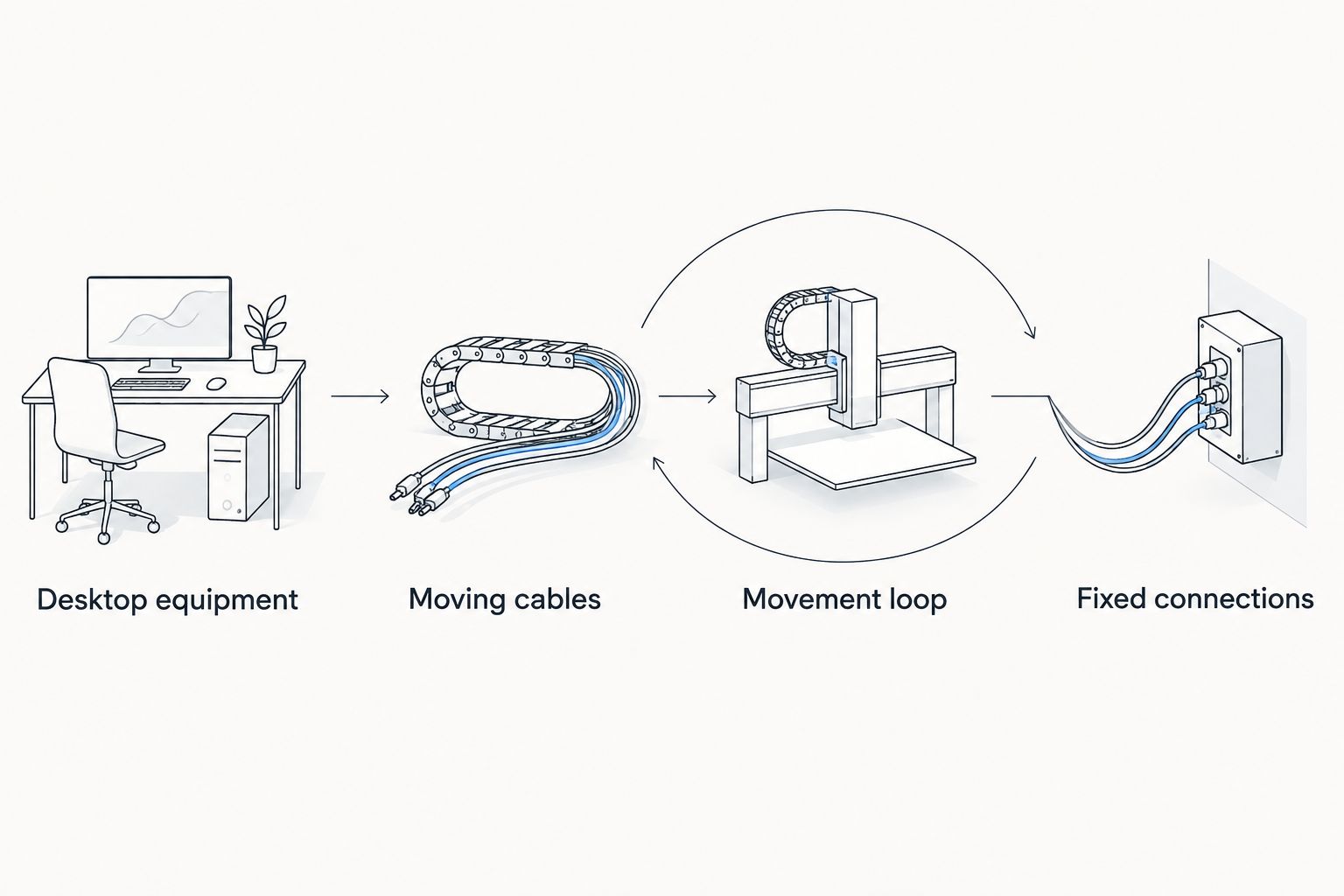
The movement loop belongs between the moving desktop cables and the fixed building connections.
A tidy-looking bundle is not proof of a safe arrangement. Before powering the desk, check that no tie, tray or cable carrier restricts the travel path or blocks access to a connection you must inspect.
Power and network connections
Connect the desk and equipment
- Check the desk’s required supply against its manufacturer’s instructions. Use the specified power supply and connection arrangement; do not substitute an adapter because its connector appears to fit.
- Check the combined equipment load against every relevant component’s rating, including the outlet arrangement and any power distribution unit. Ask an electrical professional to resolve uncertain capacity.
- If a desk-mounted power distribution unit is permitted, mount it using its approved method. Do not connect power strips in a chain or treat an extension lead as a replacement for necessary fixed wiring.
- Connect the network cable to the confirmed outlet and the intended computer or dock. Make sure the connector engages without being pulled sideways by the cable route.
- Restore power and check basic operation while the desk remains stationary. Confirm that the computer recognises its display, peripherals and wired network connection.
Expected result: Each device operates at the starting height, with no loose connections or unsupported adapters.
Include the actual equipment configuration in your 2026 workstation record. A later change of dock, monitor or power supply requires another check; the original arrangement does not establish compatibility for replacement equipment.
Movement and handover checks
Test the complete travel range
- Clear the area above and below the desk. Keep hands, chairs, bins and other objects away from the mechanism, and make sure no cable can catch on nearby furniture.
- Following the desk manual, move the desk slowly through its permitted range. Watch the cables from a safe position; stop immediately if a lead tightens, catches or pulls a connector.
- Check 2 height extremes: the lowest and highest permitted positions. At each position, inspect the movement loop, connection access, monitor leads and clearance around the lifting structure.
- Complete 1 full raise-and-lower cycle with the final equipment connected. Confirm that the network, displays and peripherals remain connected throughout the movement.
- Check 1 desk at a time in a shared office. Inspect neighbouring furniture and cables before accepting the workstation, especially where desks share a floor box.
- Label the relevant fixed connections and record the approved cable route. Add the check date to your 2026 handover record so future changes have a clear reference point.
Expected result: The desk reaches its permitted heights without straining connections, trapping cables or interrupting connected equipment.
Do not use anti-collision behaviour as a cable-safety test. A cable must remain protected without relying on the desk detecting an obstruction.
When the office uses a floor box
A floor-box setup uses the same moving-desktop arrangement, but the fixed end needs a separate inspection. The lid and outlet recess become part of the cable route.
- Follow the floor-box manufacturer’s instructions for cable exits and lid closure. Do not trap leads under a lid or force connectors into an unsuitable recess.
- Keep the emerging cables clear of chair wheels, feet and cleaning routes. Use suitable protection where the installation requires it, without creating a new obstruction.
- Position the movement loop so it does not drag across the floor or pull cables out of the box as the desk rises.
- Repeat the complete travel test with the floor-box lid in its intended operating position. Testing with the lid open does not establish that the finished route is safe.
Expected result: The floor box remains usable in its intended configuration, and the cable exit stays protected at every desk height.
For a wall-connected desk, apply the same principle to the gap behind the workstation. Check that lowering the desktop cannot trap a plug, adapter or cable against the wall.
Troubleshooting
The network disconnects when the desk rises
Stop movement and inspect both cable ends for tension or a partially released connector. Correct the route, then ask IT to test the patch lead and outlet if the fault remains; do not assume the building network is responsible.
A monitor goes blank during movement
Check the display cable, dock connection and power lead for pulling. Provide movement allowance at adjustable monitor arms as well as at the desk-to-building transition, then repeat the test.
The cable loop catches below the desktop
Isolate the desk before repositioning supports. Remove the snag point or change the route using a compatible support arrangement; shortening the loop without testing maximum height can create tension elsewhere.
A plug, adapter or socket becomes unusually hot
Stop using the affected connection and isolate it safely. Have an electrical professional inspect the arrangement before reuse; cable tidying does not fix an electrical fault.
The desk stops or reverses unexpectedly
Clear external obstructions and inspect the cable route without reaching into the mechanism. Follow the manufacturer’s fault procedure; do not disable protective features or attempt an unspecified reset sequence.
Customise your workflow
Keep a simple 2026 workstation record covering the desk identification, assigned network outlet, power arrangement and approved cable route. Update it whenever you move the desk or change connected equipment.
Giant Leap’s standing desk guide is best for small-office planning, not model-specific electrical instructions. Keep layout decisions separate from the manufacturer’s installation requirements.
Expand the same checks to monitor-arm travel, laptop removal and neighbouring furniture. Before adding another accessory, identify where its cable will run at both desk-height extremes and confirm the power arrangement remains suitable.
FAQ
How do I connect standing desks to office power and data points?
Route desktop equipment cables through suitable supports, then provide a controlled movement loop to the fixed power and network connections. Follow the desk manual and test its complete permitted travel range before accepting the setup.
How much extra cable does a standing desk need?
The required allowance depends on the desk’s travel, outlet position and cable route. Check the complete permitted height range and the cable manufacturer’s bend requirements rather than applying a universal length.
Can I mount a power strip under a standing desk?
Use a desk-mounted power distribution unit only when the desk and unit instructions permit the arrangement. Check mounting, ventilation and electrical ratings, and do not connect power strips in a chain.
Do I need an electrician to plug in a standing desk?
Follow the manufacturer’s instructions for a desk designed to connect to an existing suitable socket. Use a qualified electrical professional for new outlets, fixed-wiring changes, damaged connections or uncertain supply capacity.
Why does my wired internet disconnect when I raise the desk?
Movement can strain a network cable or disturb a connector. Stop the desk, correct any tension and ask IT to test the cable and outlet if the fault continues.
Can standing desk cables run through an office floor box?
Use a floor box only with its intended cable exits and operating configuration. Check that the lid does not pinch cables and that desk movement cannot pull against the connections.
What should I check after moving a standing desk in 2026?
Repeat the power, network and full-travel checks after moving a standing desk in 2026. The new outlet position changes the cable route even when the equipment stays the same.
One last thing
Test the lowest position as carefully as the highest. Raising a desk exposes short cables; lowering it exposes loose loops that catch, fold or enter the mechanism. A safe handover checks both.